Local School Hot Meal Service
“Nourishing Young Minds with Every Bite”
Managing your child’s meals is simple through our online SchoolBitez platform. From setting favourites and allergens to placing orders quickly and easily, we make healthy eating hassle-free for families — and something children genuinely look forward to.

Proper Food, Made by Real Chefs. For Real Kids.
At GourmetFuel®, we believe every child deserves food that’s as real as they are. That’s why we create honest, wholesome meals using only high-quality ingredients — no additives, no preservatives, and absolutely no nonsense. Just proper food, made by real chefs, to nourish growing bodies and curious minds.
As a proud part of the local community, we’re committed to helping children develop a lifelong love of healthy eating. Every dish is crafted with care to be both delicious and nutritionally balanced — giving parents peace of mind and schools a service they can trust.
Schools we are serving in 2026
-
 Zion Parish Primary School
-
 St Brigid’s BNS
-
 Bray School Project
-
 Rathgar National School
-
 Kildare Place School
-
 Our Lady of Good Counsel BNS

Get the app
Download the GourmetFuel Schoolbitez App Here!

Simply scan the QR Code
Tutorial — How to Set Up a Parent Account and Place Orders
Step 01 Login/Create Parent Account
- You will receive a link to the portal, School Code and each child’s unique Student ID Code from your school.
- Click the link on your laptop or mobile device. This will open a Login Page of the Online Ordering System.
- You can also scan the QR Code to download the SchoolBitez mobile app to order from your mobile phone.
- On the mobile app, you will be prompted to enter your school code given by your school.
- Create your Parent Account by clicking the “Create New Account” button, please use a valid email address to login rather than create a username.

Step 02 Adding a child
- Once logged in, you can add your child to your account by clicking the “Add Child” button.
- You will need child’s unique Student ID code emailed by your school.
- Enter their ID code, if you do not have one yet, please contact your school.
- Click “Find Student Account” to locate your child’s details.
⭐ You may receive an error message ”We could not find a Student for this ID. Or the Student with this ID is already associated with another Parent account.” This means that either the student code is incorrect, or the child has already been claimed within another parent account.

Step 03 Confirm Child Details
- After entering the Student ID correctly, your child’s information will appear, including: Student ID, Full Name, Grade, School Details.
- Review these details carefully.
- If applicable, indicate any known allergens by ticking the relevant boxes. On the mobile version to indicate any known allergens, click the “dietary restrictions” button under your child’s profile on the homepage. It is located below their unique Student ID Code.
- Once all information is correct, click the “Add Child Button”
- Your child’s Profile can now be viewed from the Parent Account Homepage.

Step 04 Adding Multiple Children
- To add another child to your Parent Account, click the “Add Child” icon at the bottom right of the homepage. On mobile App, this button is located in the top left of the screen.
- Repeat Steps 2 and 3 for each additional child and ensure all information is correct.

Step 05 Selecting Favourites
- On the Parent Account Home screen, click the Favourites button under your child’s profile. On the mobile app, you can access favourites from the Favourites tab in the bottom menu.
- You will see the available menu. The Hot School Meals appear in the first tab.
- Allergens are shown in red within each meal icon. Use the allergen filters on the left to select specific allergens and click “Apply Filter” to display only suitable meals for your child.
- Click the heart icon to add a meal to favourites, and click it again to remove it.
⭐ Adding favourites helps automate your child’s meal schedule and speeds up ordering.
⭐ Meals containing allergens listed in your child’s profile cannot be favourited unless you tick the override box, but we strongly advise against doing so to ensure your child’s safety.

Step 06 Placing an Order
- Click the “New Order” icon on the profile of the child you wish to order for.
- Choose either a Manual Order or an Automated Order.
- Select the correct child from your list, ensuring any others are deselected by removing the blue tick beside their name.
- Use the drop down menu next to your child’s name to choose the appropriate portion size.
- Select “Include Hot Meal”, and choose the date range and number of days you want to order for. You can deselect specific days by clicking the blue tick on those dates.
⭐ Manual Order: You select one meal per day from the menu.
⭐ Automated Order: The system selects one meal per day based on your child’s favourites and the daily menu.
⭐ Note: Automated ordering requires favourites to be saved in your child’s profile.

Adding Meals to Order — Manual Order Process
- You will now be taken to the calendar to place your monthly order. On desktop, you can choose from three views: Weekly, Monthly Compact, or Monthly Detailed.
- Click the “+” icon on a date to view the menu for that day. To make ordering easier, we recommend placing your child’s full month of hot meal orders at once.
- Select ONE meal for your child by clicking “Add to Cart”.
- To change a meal, click the trashcan icon to remove it, then click the “+” icon to view that day’s menu and select “Add to Cart”. ⭐ Note: You must remove the existing meal before adding a new one.
- Once happy with your meal selections, click “Proceed to Checkout” and follow the steps to place the order. You will receive an email confirmation once the order is successfully placed.
⭐ Note: There is no order amount, (€0.00)

Adding Meals to Order — Automated Order Process
- Automated Ordering selects meals based on your child’s favourites and the dishes available on that day’s menu.
- To change a meal, click the trashcan icon to remove it, then click the “+” icon to view that day’s menu and select “Add to Cart” on the meal you wish to add. ⭐ Note: You must remove the existing meal before adding a new one.
- To make ordering easier, we recommend placing your child’s full month of hot meal orders at once. ⭐ If needed, you can modify/cancel the order later—details are in the following steps.
- Once happy with your meal selections, click “Proceed to Checkout” and follow the steps to place the order. You will receive an email confirmation once the order is successfully placed.
⭐ Note: There is no order amount, (€0.00)

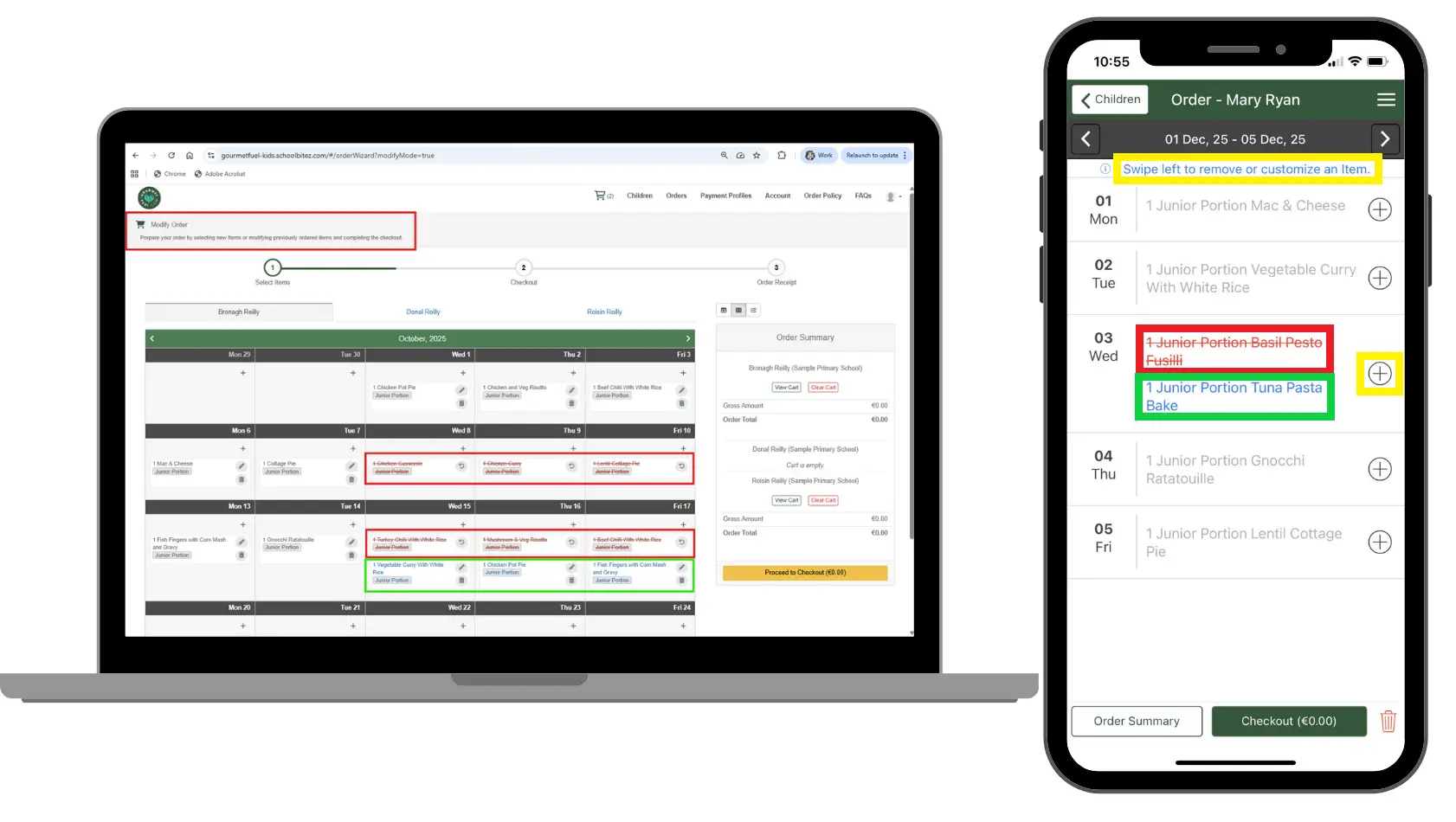
Modifying Orders
- To modify an order already placed, Click “Modify Orders” on your child’s profile on the Homepage.
- You will then be brought to the calendar, where you can see the meals previously selected.
- To change a meal on the desktop version, click the trashcan next to it. On mobile app, swipe left on the meal and click the red “X”. The meal will turn red with a strikethrough, showing it has been removed. Then click the + to select a replacement meal. Click the reverse arrow to undo any changes.
- To remove a day of meals, click the trashcan icon beside the meal name. On mobile app, swipe left on the meal and click the red “X”. Again, you will see the meal change to red font with strikethrough. There is now no meal scheduled for that day.
- To add a meal to a day with no selection, click the + and choose from the available menu.
On the menu
Here’s Just a Taste of What’s on the Menu for your Little One!
Six meals on the menu each day in both Junior and Senior portion sizes, with daily options for Omnivore, Vegetarian, Vegan, Dairy Free, Coeliac Friendly and Halal.
-

Mild Beef Curry
Mild, rich & utterly satisfying.
-

Chicken Leek Pie
Protein-packed, hearty goodness!
-

Mac & Cheese
Hidden veggies in here... Shh!
-

Savoury Mince
Savoury, delicious and nutritious!
-

Tuna Pasta Bake
Warm, tasty and packed with fibre!
-

Vegetable Curry
Lots of colourful veggies in here!
-
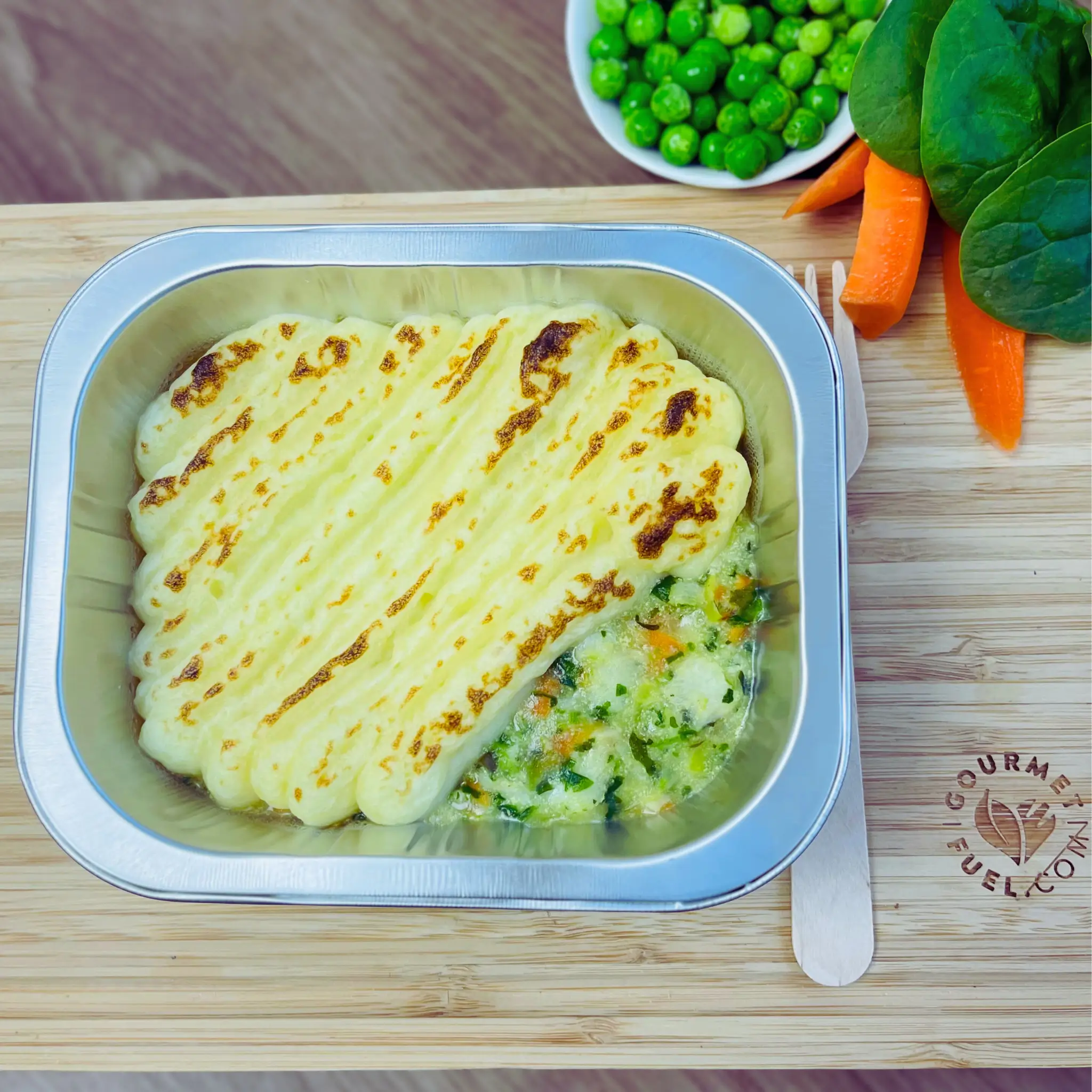
Fish Pie
Healthy comfort in every bite
-

Tomato Pasta
Sundried tomatoes & Red Peppers for all the flavour!
-

Chicken Pot Pie
Wholesome, tasty goodness in each forkful
-

Bacon & Cabbage
A firm favourite among kiddies!
-

Basil Pesto Pasta
Added spinach for a nutrition boost, and colour!
-

Roast Chicken
Traditional, nourishing and satisfying.
-

Cottage Pie
Comfort food, that’s done right.
-

Veg Risotto
Creamy, flavourful & veg packed!
-
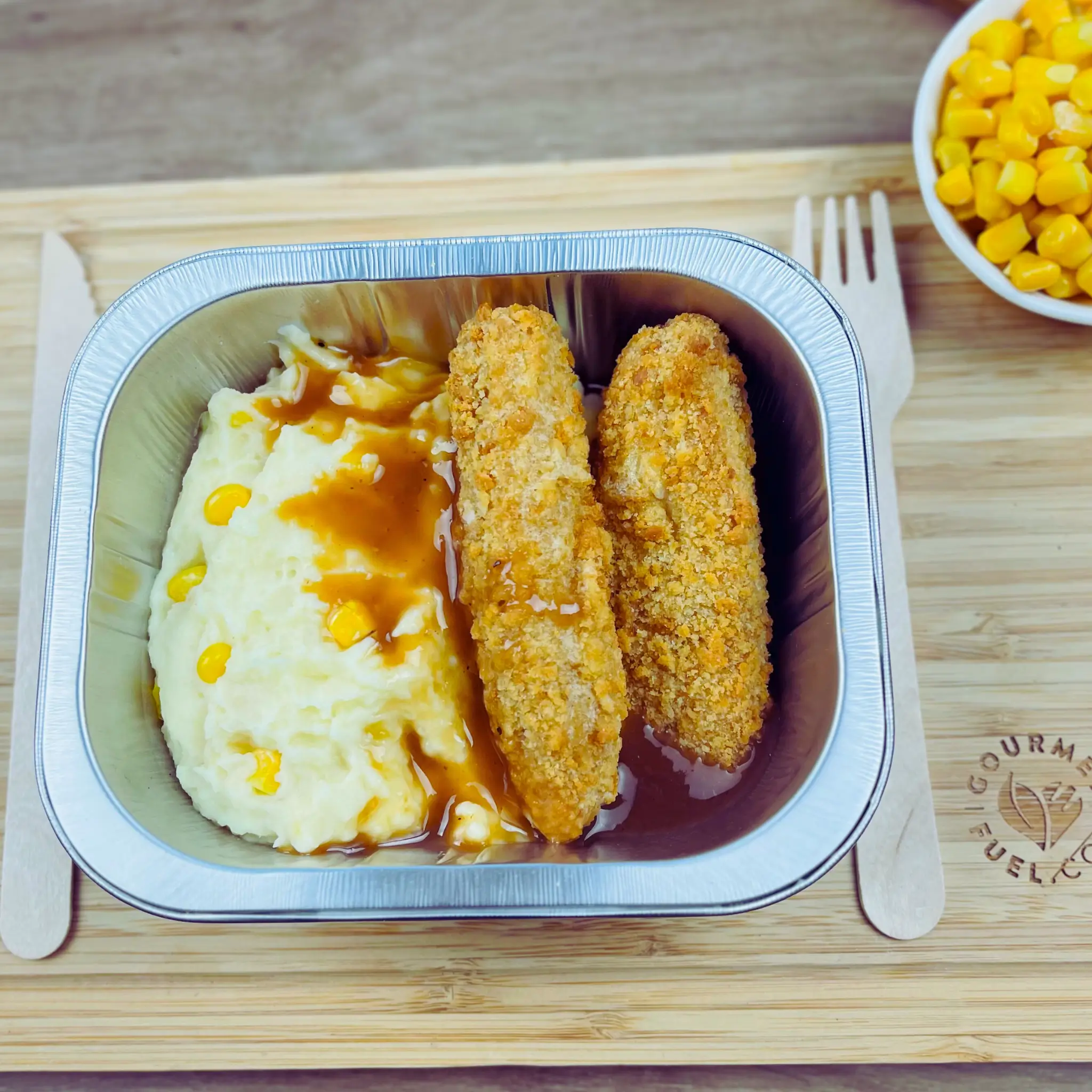
Cod Goujons
With sweetcorn mash, a healthy twist on a classic.
-

Chicken Chunks
Tender chicken, with hearty veg.
-

Chicken Ragu
Ragu-riffic and totally wholesome!
-

Turkey Chilli
Protein-powered deliciousness!
-

Chicken Casserole
Veg-packed goodness!
-

Chicken Fried Rice
A classic, made healthy!
And that’s it — your part is done. Now you can sit back and relax, GourmetFuel will take it from here.
Once you’ve placed your order, our team takes care of everything else — from expert nutrition planning to seamless delivery. Each meal is freshly prepared by our chefs with your child at the heart of every recipe, and delivered warm and ready straight to their classroom by our skilled logistics team and drivers.
Get Started- 6 hours
- Hot Boxes hold hot meals at temperature while closed
- €0.00
- There is no order amount at checkout
- Recyclable
- Foil trays go back in the box and we collect and recycle the waste
Learn more about GourmetFuel, we’ve been serving happy families for more than a decade
School Service — FAQ’s
Ring us on 01-2938799 or email schools@gourmetfuel.com
How do I get my Student ID/School Code?
The Student ID and School Code are given to you by your school.
What types of meals are offered each day?
Individual meals with both Junior and Senior portion sizes to suit all age groups are provided. There are six meals on the menu each day, with options varying daily. Daily options for Omnivore, Vegetarian, Vegan, Dairy Free, Coeliac Friendly and Halal. If your child has specified allergens, the available options may be reduced on certain days.
How does the monthly menu system work?
Menus are available one month at a time and available 2 weeks ahead of each month for parent’s to order. Each month has a full rotation of meals meaning meals will only appear a small number times each month.
How does the Hot Box delivery system work?
Our Hot Boxes morning deliveries can hold hot meals for up to 6 hours while closed. Meals are ready to serve when opened. Each meal comes sealed in a recyclable foil tray. When meal time is over put everything back in the box and we collect and recycle the waste.
Can I Modify/Cancel my order after placing?
Yes! Cancellations must be made at least 2 business days before the dispatch day. For example, to cancel a Monday, you must cancel by the previous Wednesday. To modify or cancel an order, please refer to the tutorial section above.
When is the cut-off to place my order?
The order cut-off deadline is a rolling 7 cut off. For example for a delivery on a Monday you must order the Monday the week before. You can order up to 6 weeks at a time so it would be simplest to do that and you can then forget about it!
How do I get support if I have an issue with my order?
Ring us on 01-2938799, email schools@gourmetfuel.com